Introduction
Federated Copilot connectors were announced in Message Center in March, the official Learn article for the feature says what “Federated connectors” are
Microsoft 365 Copilot supports federated Copilot connectors to enable organizations to connect their data to Copilot by using Model Context Protocol (MCP). Federated connectors use MCP to access data in real time, so Copilot can retrieve up-to-date information directly from external systems. This approach makes it easy to integrate live, dynamic data sources while keeping the data in its original location.
This is how they look under Copilot > Connectors in the Admin Center:
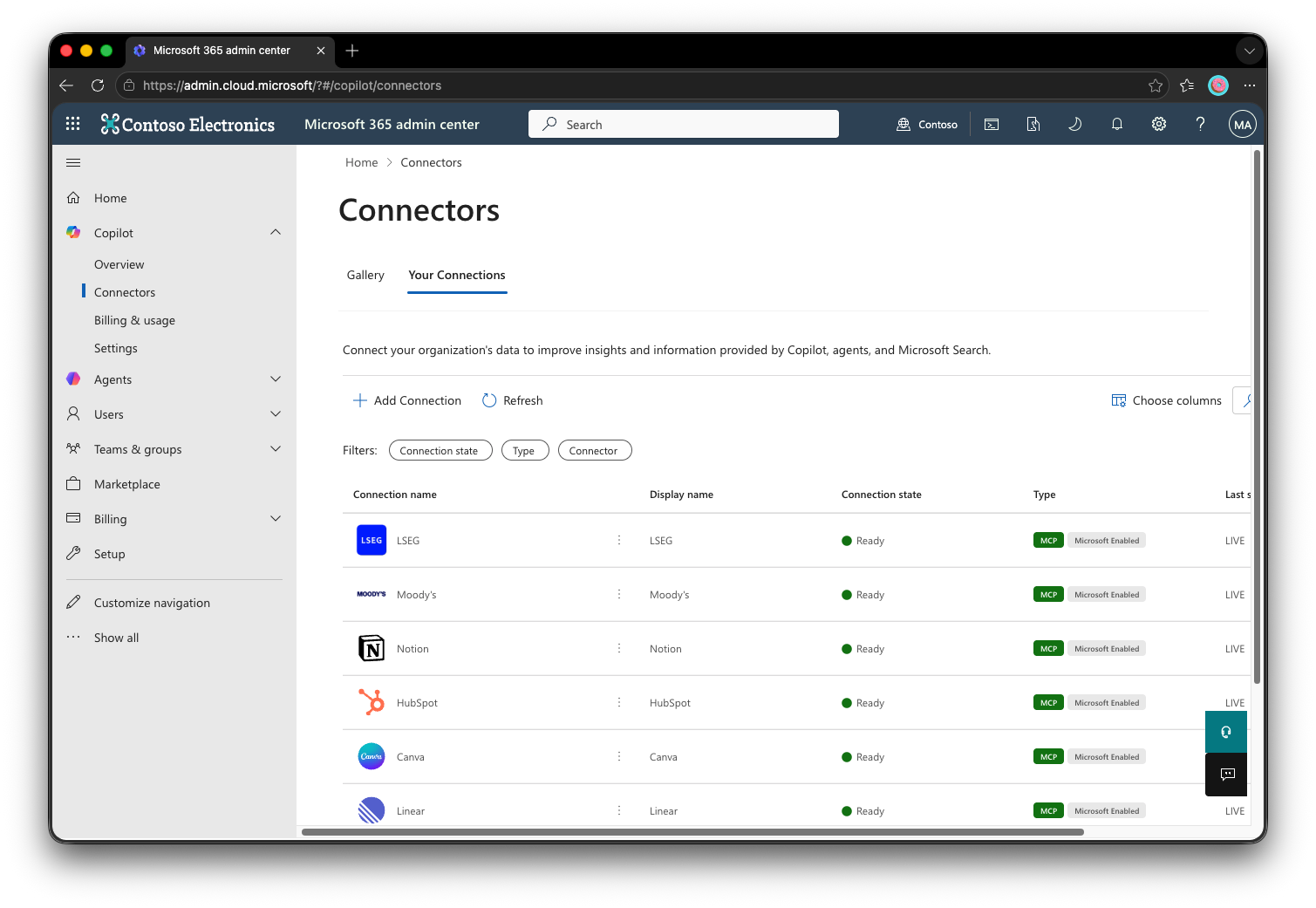
From there, we can see that there are different connectors from different data sources, we can stage the rollout to everyone or by groups and we can disable specific connectors.
These federated connectors come all enabled by default, how can we disable all of them at once?
Using the Connector.Cmd PowerShell module
This is when this PowerShell module (added it to https://MSShells.net) comes to scene, these other Learn article explains how to use it, let’s disable all the connectors so we can enable them later by demand
After installing the module, the article instructs us to run
Set-FederatedConnectorToggle
When ran, and after authenticating, I received this error message
========================================Federated Connector Toggle Manager========================================start fetching msal token.Requesting for Msal Access token.msal token fetched successfully.ERROR: Failed to fetch vertical settings. Response status code does not indicate success: 404 (Not Found).Set-FederatedConnectorToggle: Error happened while executing Set-FederatedConnectorToggle. Error = { "error": { "code": "SsmsSettingNotFound", "message": "Vertical not found" }}
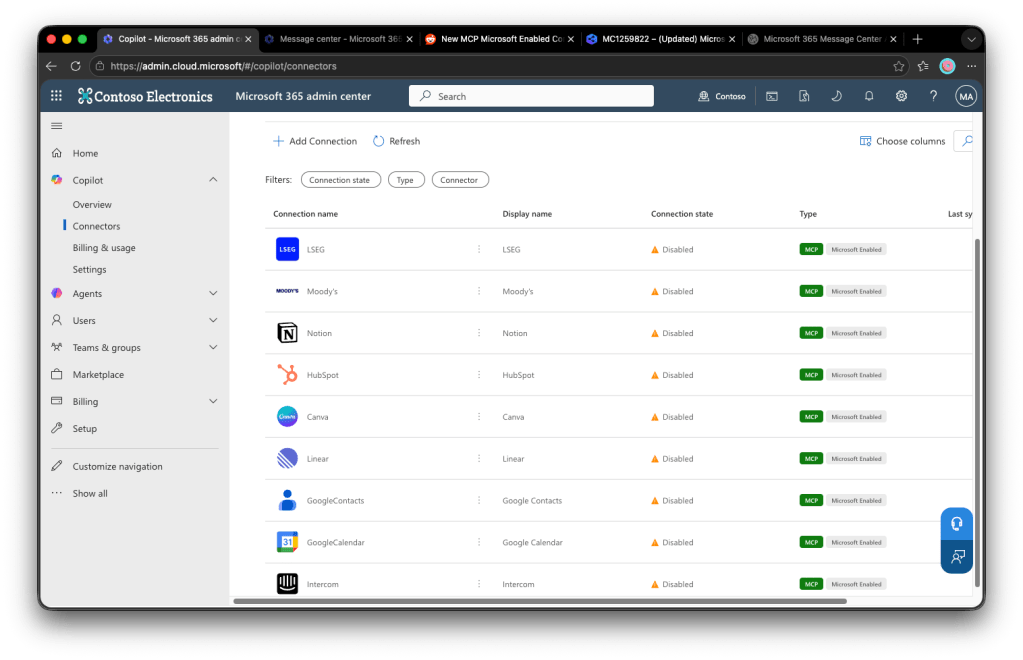
This reddit article said to wait some minutes and retry, that didn’t make the trick, what made the trick was to disable at least one federated connector using the UI, once I did that, the cmdlet worked and asked what I wanted to do, I chose to disable all connectors:
set-FederatedConnectorToggle========================================Federated Connector Toggle Manager========================================start fetching msal token.Requesting for Msal Access token.msal token fetched successfully.Current State: Federated connectors are ENABLED for your organizationWhat would you like to do?[1] Disable all connectors (including future connectors)[2] Keep enabled by default (disable individually via Admin Center)You can manage individual connectors at:Microsoft Admin Center -> Connectors -> Connection listSelect option (1-2): 1Updating settings...Verifying changes...Updated successfully.All federated connectors are now DISABLED.Users cannot see federated connectors in Copilot.Future connectors will be disabled automatically.Note:Changes may take up to 10 minutes to reflect.You may need to refresh the Admin Center to see the updated state.
That reflected instantly to the UI
Module authentication needs urgent improvement
You may have noticed that the module seems to only offer device authentication, a method that is gaining popularity among Phishing as a Service platforms, and it is recommended to be either disabled or restricted through Conditional Access Policies like Merill Fernando explains:
EDIT: Module also requires MSAL.PS as a prerequisite, an unofficial module last updated in 2021!


Leave a comment