Introduction
Otter.Ai is a third-party solution that enables AI note taking, real-time transcription and summarization for meetings and conversation, it offers a basic and a pro plans, and it seems to be an alternative if you want an AI assistant to your meetings and don’t have access to a Copilot license, however, what if you are a Microsoft 365 administrator and you are given the task to prevent this assistant from recording and listening to your company meetings? This post tries to give some hints and solutions, however, as we will see, there are still some limitations.
How it works
Otter.ai offers a free tier called “Basic” that includes 300 monthly transcription minutes, there is also a Business plan with more features along with 6000 monthly transcription minutes.
For this test, I used the Basic plan, it offers you to create an account or sign-in using your Microsoft or Google credentials (depending against which service you’ll use this assistant to), upon selecting Microsoft, you’ll be asked for certain permissions:
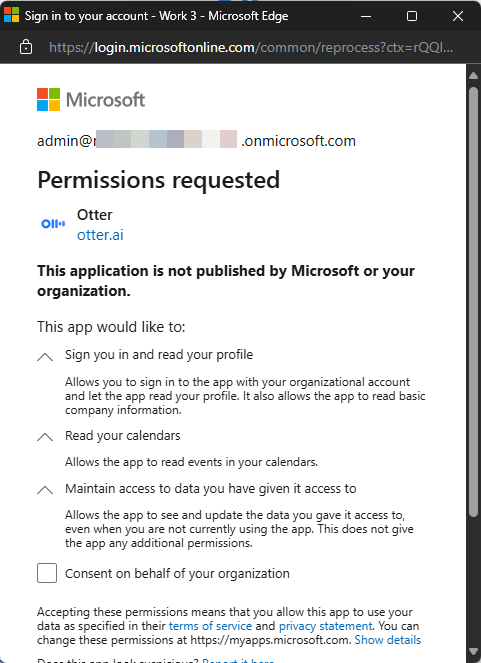
Those permissions translate to these Graph delegated permissions
- User.Read (Sign in and user user profile)
- Calendars.Read (Read user calendar)
- offline_access (Maintain access to data you have)
- openid (Sign users in)
- profile (View user’s basic profile)
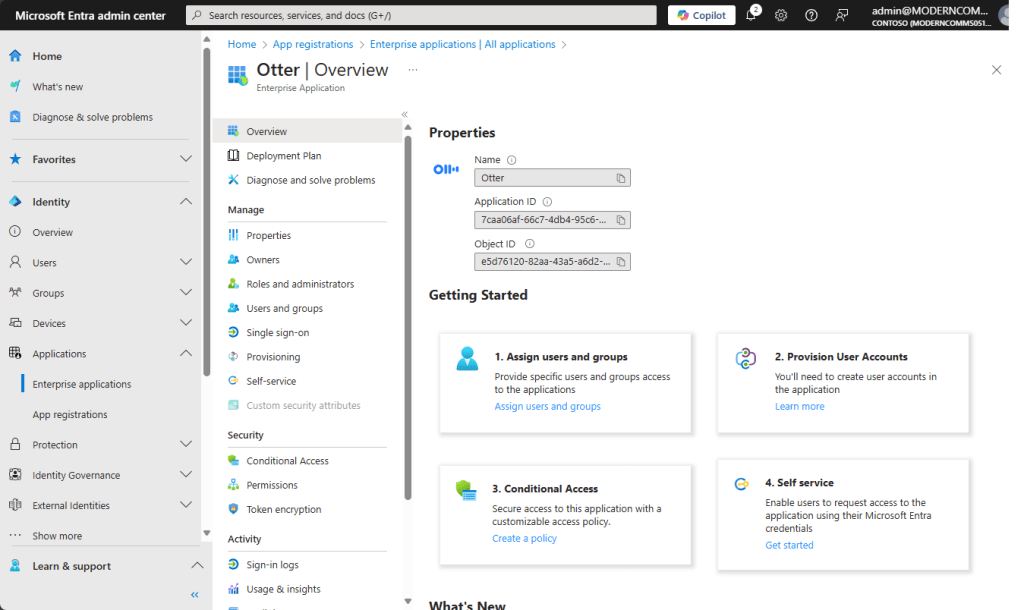
On successful login (more on this later) an Enterprise application app with guid 7caa06af-66c7-4db4-95c6-aedae793935a will be created in our tenant
After some welcome wizard where you can personalize your experience you’ll be taken to a portal where you can see your next imported scheduled meetings (let’s remember we’ve given permission to this app to do that):

First, I joined meetings through a handy Join meeting option in every imported meeting item, I then noticed that a Record button appeared on the same item, its function is to start recording the meeting on-demand, at this point you can start prompting the AI behind this assistant using the AI Chat option (Sounds familiar?)
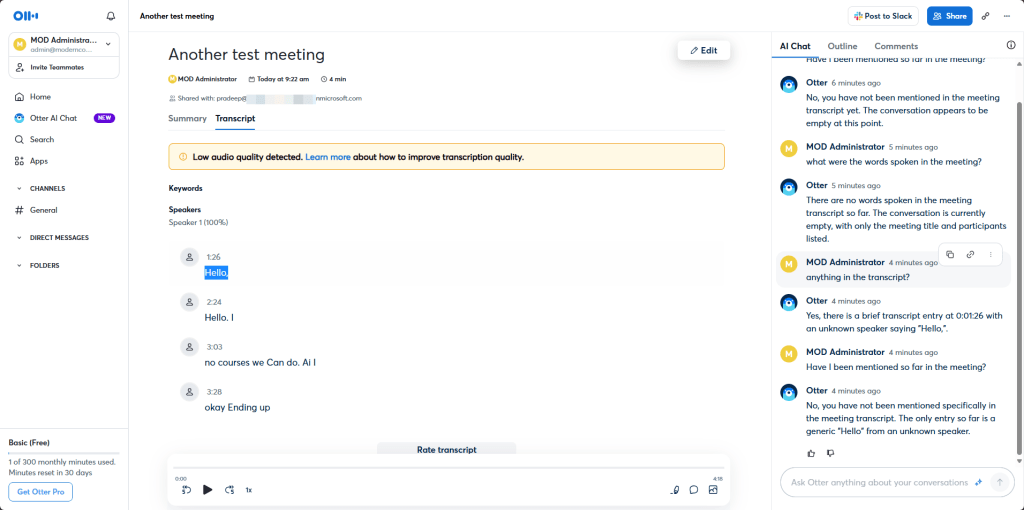
By joining this way, I didn’t experience any other participant joining the meeting others besides who were invited, so no one will notice there is a participant recording the meeting, remember that it does that with the user account and permissions given.
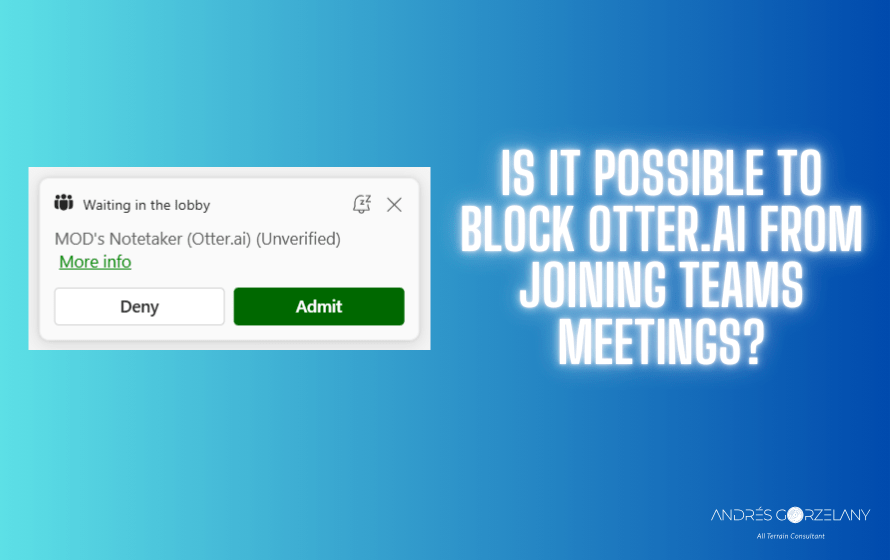
When the scheduled start time of the meeting is reached, the assistant, identified by “User’s Notetaker (Otter.ai)” will try to join the meeting (if it is configured to do so), as it was set in the meeting policies, I had to let this meeting participant in from the lobby:


It wasn’t even necessary for the user to join this meeting.
The Notetaker/Assistant/Agent even sent a meeting chat introducing itself:

As the goal of this post is not to do a deep dive of the functionalities of this tool, let’s move on if and how we can prevent the usage of this tool in our tenants.
How to block or prevent the use
First of all, good practices say that we should prevent non-admin users from registering apps into our tenant, to do so, you should have this option set to No (Entra ID Portal > Identity > Users > User settings):

Also this option (Identity > Enterprise Applications > Consent and Permissions) is recommended to be set to Do not allow user content.

This should be your first barrier against any unauthorized app. Here, some supporting official documentation:
- To disable the default ability to create application registrations or consent to applications | Microsoft Learn
- Restrict a Microsoft Entra app to a set of users – Microsoft identity platform | Microsoft Learn
What if this app is already present in our tenant?
Chances are, this app is already registered in our tenant and we need stop its use, first thing that you want to do is set this option in Entra ID portal (Identity > Enterprise Applications > Otter > Properties) to No

That should stop users from being able to synchronize new meetings into this tool and future app registrations.
Other controls at Teams level
There are a couple of settings at Teams level that can help prevent this and other AI/Note-taking tools from automatically joining meetings, let’s review them.
Require verification checks to join Teams Meetings
This recent feature introduced to prevent this kind of bots from joining can be useful to prevent the assistant from joining, however, as we could see, it can’t prevent the user from manually starting the recording from the app.
After enabling this control, the “OtterPilot” seem to had issues joining the meeting automatically.

Limitations
However, when joining another’s tenant meeting, I couldn’t prevent the on-demand recording from the Otter.Ai platform, and there was no way to know it was being recorded and transcribed, the way the on-demand recording seems to work is by accessing your microphone, so I guess that you need to join with the same device that you are using to join the call, at this point, this is like starting a recorder next to your speaker, and we won’t be able to prevent that either, right?


 Andrés Gorzelany
Leave a comment