A customer recently inquired me about a process named ai.exe, which was flagged by a user in Task Manager for consuming excessive system resources. I attempted to locate official documentation or information regarding this process but was unable to find any. I also reached out to Microsoft for clarification, but without luck. I decided to write about it.
Local Artificial Intelligence ( AI ) in Microsoft Office desktop apps on Windows was recently moved out-of-process. In other words, Office desktop apps ( like Word, Outlook, PowerPoint, etc. ) now communicate with another program ( ai.exe ) to perform most local AI.
For Microsoft Office desktop apps on Windows, the following are the main binaries associated with local AI:
aitrx.dll: The transceiver ( trx ) library loaded by Office desktop apps to transmit inputs to and receive outputs from ai.exe.
ai.exe: The executable used to host ai.dll. This executable receives inputs from aitrx.dll in an Office desktop app, runs those inputs through ai.dll to get the associated outputs, and transmits those outputs back to aitrx.dll in the Office desktop app.
mlg.dll: A natural language processing related library loaded as needed by ai.dll. This contains code created by Microsoft’s Machine Learning Group ( MLG ).
aimgr.exe: The manager ( mgr ) executable used to manage various instances of ai.exe across Office desktop apps. Note: At the time of this reply, this executable is not yet enabled outside of Microsoft.
For a typical Office x86 click-to-run installation, these binaries are at the following two locations:
Primary ( x86 ): %ProgramFiles(x86)%\Microsoft Office\root\vfs\ProgramFilesCommonX86\Microsoft Shared\Office16\
Secondary ( x86 ): %ProgramFiles%\Microsoft Office\root\vfs\ProgramFilesCommonX86\Microsoft Shared\Office16\
For a typical Office ARM64EC click-to-run installation ( such as Surface Pro 9 with SQ3 processor or Surface Pro X with SQ2 processor ), these binaries are at the following two locations:
All Office binaries are code signed; therefore, all of these binaries are code signed. A valid code signature means that the binary has not been modified after it was code signed. Code signing takes place during official Office builds after source code has been compiled and linked into the various binaries. Here’s an example of the valid code signature for ai.exe version 0.12.2 ( part of the latest internal build of Office ):
This is similar in concept for all other versions of ai.exe.
AI models that are run by ai.dll can be found in the following two locations:
If the model comes with the installation, then the location is:
For a typical Office x86 click-to-run installation: %ProgramFiles(x86)%\Microsoft Office\root\Office16\AI\
For a typical Office x64 or ARM64EC click-to-run installation: %ProgramFiles%\Microsoft Office\root\Office16\AI\
If the model is downloaded from a Microsoft Content Delivery Network ( CDN ), then the location will be under the %USERPROFILE%\AppData\Local\Microsoft\ folder in a subfolder associated with its project name.
A high-level summary of execution is as follows:
Local AI binaries are only loaded if they are used. This means that if you never execute a section of code inside an Office desktop app that requires local AI, then none of the local AI binaries are loaded … so ai.exe would not be launched.
Once local AI binaries are loaded, they remain loaded until the Office desktop app is exited. For example, if you execute a section of code in Outlook that uses an AI model, then ai.exe will launch, load ai.dll, and ai.dll will load and run that model. If you leave Outlook running in the background, then ai.exe will also remain in the background. When Outlook is exited, then ai.exe is exited. ai.exe remains loaded because running any given model generally happens several times during a session, not just once, and it takes a substantial amount of time to launch ai.exe, load ai.dll, and have ai.dll load the model. In other words, ai.exe is retained in memory in order for Office performance to be as fast as possible under these circumstances.
Once local AI binaries are loaded, they will reload themselves as needed. For example, if you execute a section of code in Outlook that uses an AI model such that ai.exe has launched, loaded ai.dll, and ai.dll has loaded and ran the associated AI model, if ai.exe is killed and you execute another section of code in Outlook that uses that model, the ai.exe for that model will relaunch, reload ai.dll, and ai.dll will reload and run that model.
A distinct ai.exe is loaded for each distinct AI model. For instance, if Outlook uses three distinct AI models, then three distinct ai.exe will be launched to enable process isolation between the models. If one goes down ( say due to an unexpected crash ), it doesn’t take down the other two along with it … and most importantly, it also doesn’t take down Outlook with it.
Local AI was moved out-of-process for multiple reasons. Here are two of those reasons:
To minimize the memory consumption within Office desktop apps on Windows. Background: Due to Office’s long history, some Enterprise and Consumer Customers still use Office x86 desktop apps since they have important x86 add-ins made by companies that either no longer exist or no longer provide extended support, so x64 or ARM64EC versions of those add-ins cannot be created. Office x86 desktop apps are 32-bit executables where the maximum memory size available is only 4 GiB. When a x86 app makes an allocation request for any amount of memory that would cause the total amount of memory to exceed 4 GiB, that request is denied and the app handles that denial. Most AI models ( esp. neural network models ) consume a substantial amount of memory. Moving the vast majority of AI memory consumption out-of-process enables an Office x86 app to conserve memory inside that app for other important purposes.
To minimize the memory consumption across Office desktop apps on Windows. Background: Regardless if you are using the x86, x64, or ARM64EC version of Office desktop apps, the computer running those apps has a finite amount of physical memory. When the same AI model is used in multiple apps ( such as the same natural language processing model in Word and Outlook ), that model is currently loaded once per app ( more precisely, once per process ). That model is not currently shared between apps. Moving local AI out-of-process is the first of multiple steps toward sharing AI models between Office desktop apps so that we can conserve physical memory on the computer for other important purposes.
Questions and Answers:
Question: Why is AMD identifying “C:\Program Files\Microsoft Office\root\vfs\ProgramFilesCommonX64\Microsoft Shared\Office16\ai.exe” as “Alien Isolation”? Answer: Because that AMD software is either configured incorrectly or currently has a “bug”. If that AMD software is configured correctly, then please make a bug report to AMD so that they can fix that issue. A quick web search suggests that bug reports to AMD can be made using https://www.amd.com/en/support/kb/faq/amdbrt ; however, please ensure you verify if this link is actually relevant for your AMD software or if a better link exists.
Question: What happens if I rename “C:\Program Files\Microsoft Office\root\vfs\ProgramFilesCommonX64\Microsoft Shared\Office16\ai.exe” to some other filename ( such as XXai.exe )? Answer: Local AI in Office will no longer work ( internally, local AI related calls will just immediately fail ). During the next Office update ( at a minimum, this happens each month, but can happen more often depending on your Update Channel ), ai.exe will be restored if there were any changes.
Question: Does “C:\Program Files\Microsoft Office\root\vfs\ProgramFilesCommonX64\Microsoft Shared\Office16\ai.exe” currently impact the GPU? No, neither aitrx.dll, ai.exe, ai.dll, mlg.dll, nor aimgr.exe are currently compiled to use the GPU. For those that know about the ONNX Runtime’s Execution Providers, only the CPU Execution Provider is currently used. This will change in the near future, but for now, local AI in Office desktop apps using these binaries only leverages the CPU.
Question: Does “C:\Program Files\Microsoft Office\root\vfs\ProgramFilesCommonX64\Microsoft Shared\Office16\ai.exe” contain malware or is it a virus or is it some similar exploit? No, the local AI binaries do not contain malware, do not contain viruses, and do not contain any similar exploits like that … so as long as ai.exe is coming from the Office paths mentioned above and remains code signed by Microsoft ( i.e. has not been modified since it was signed during its official Office build ), then ai.exe remains good to go. If your anti-virus software or anti-malware software is detecting ai.exe as malware, a virus, or some similar type of exploit at that Office location and its valid code signature is still intact, then your anti-virus software or anti-malware software most likely has a “bug” in its malware/virus detection algorithm. Please make a bug report with the vendor of that anti-virus software or anti-malware software. While it is always possible that nefarious folks have circumvented all of the safeguards, extensive defense-in-depth measures, and exhaustive security scanning that have been added over the years and found a way to add malicious code prior to code signing, that probability is very low … so: possible, but not probable.
Aside:
Local AI in Office desktop apps on macOS, in Office mobile apps on Android and iOS, and in Office web browser apps and in progressive web apps is currently still performed in-process.
I swear that the first time I found that answer, it had a username, but now it says it was written by “anonymous”. The amount of information on that reply leads me to think it is written by someone from Microsoft.
You can also find other forum sites asking what this process is and does. Including a news portal site in Spanish trying to explain what this process does.
What can be observed
In my computer, with Microsoft 365 Apps installed, the process is located in C:\Program Files\Microsoft Office\root\vfs\ProgramFilesCommonX64\Microsoft Shared\OFFICE16\AI\ai.exe and it is identified as “Local Artificial Intelligence (AI) Host for the Microsoft® Windows® Operating System and Platform x64.”
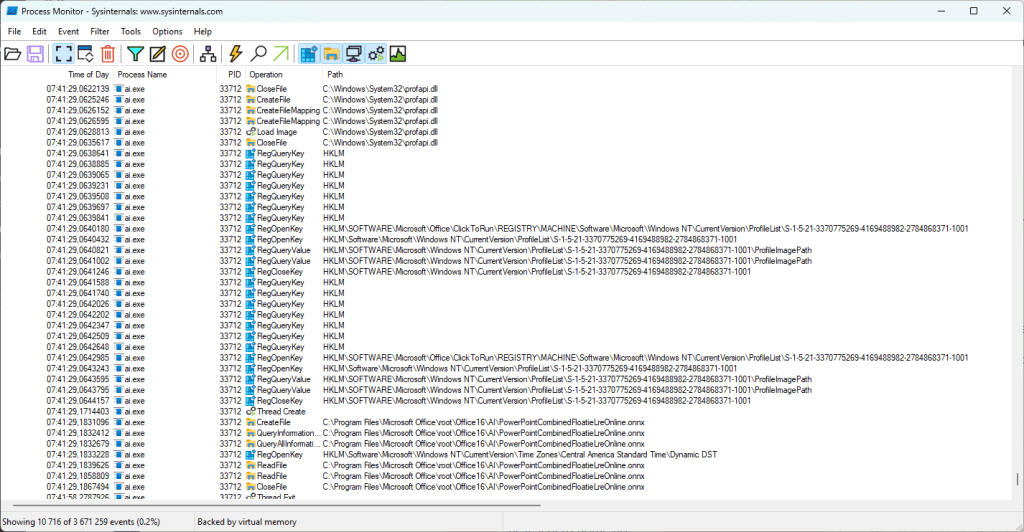
I decided to open SysInternal’s Process Monitor tool and filter by this process name, didn’t have to wait too long (with any Microsoft 365 Apps open) to start seeing process activity:
It is unclear which functionality from any of the Microsoft 365 Apps need local AI processing (it is not Copilot).
Conclusion
Given the amount of people on the internet asking about it, Microsoft should shed some light, the best, on my opinion, would be to add an official article on the Learn website, describing what this process does, what is used for, and, if, it can be disabled by any setting or policy. Some companies, particularly in Europe, take data privacy extremely seriously. The presence of a background process named ai.exe can naturally raise concerns. However, these concerns can often be addressed with clear documentation. The name itself suggests that some AI processing is happening locally on the user’s machine. But why? Is it to enable offline functionality? To ensure that private data never leaves the device? To reduce latency and improve performance? These remain open questions for now.



 Andrés Gorzelany
Leave a comment