Introduction
I always had in my To-Do list to start doing some stuff with Power Automate, I supported a couple of Nintex workflows in the past and I knew it was not so different.
Service Health posts can be checked by browsing the Admin Center (Health – Service health) and also a couple of email addresses can be set to receive notifications for new issues in our tenant.
However, usually a bigger group of people need to be aware of issues affecting the tenant, sure, you can add a Shared mailbox to receive an email notification and have a group of people check it, however, a Teams channel messages will allow to continue a discussion to decide for example, user communication and workarounds, right on the same created thread. (Unless Microsoft Teams or any of the components are being also affected by the issue, of course).
A Solution
Components
This is what we are going to use:
- Power Automate
- Microsoft Lists
- Microsoft Teams
- Service Health API
- Entra registered App
Prerequisites
Entra registered App
Create an Entra registered app with the following Microsoft Graph API permissions:
- ServiceHealth.Read.All
Also create a client secret that will be used by our Flow.
Power Automate Premium
The flow will use a Premium action (HTTP) so it will require Power automate Premium license.
Go with the flow
For this type of flow, I recommend creating a Scheduled cloud flow, the frequency depends on your preferences, given that this is checking for new issues in your tenant, I would make it check once every hour.
For sure, Power Automate experts will recognize things to improve in this flow, as said, it is my first, although I do have a past as a developer.
Actions will be shown in the order in which they need to be in the flow, in case you feel lost, there is a screenshot with a bigger picture at the end of the post.
Obtain access token (HTTP Action)

This action should get us the access token we will use for the rest of the flow, remember to generate the Client secret and gather the client id and the tenant id corresponding to the registered app we created in the prerequisites section.
Parse access token (Parse JSON action)

I parse the output of the previous action using a Parse JSON action so I can better handle the access token.
Obtain Services (HTTP Action)
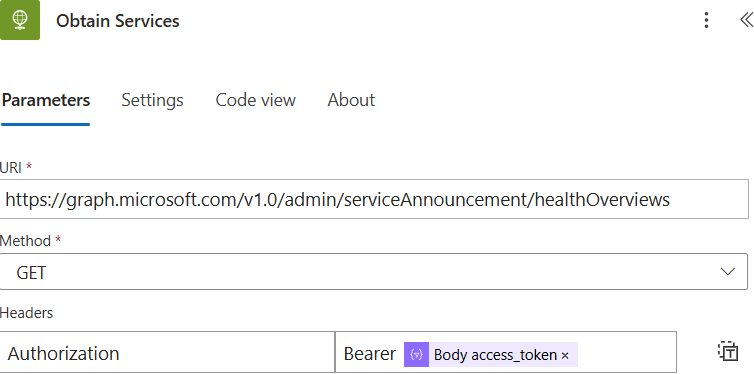
This represents our first interaction with the Service Health API, in this case, we are using the healthOverviews path, this should return a list of the services and its corresponding status, it is like this list but in JSON format:
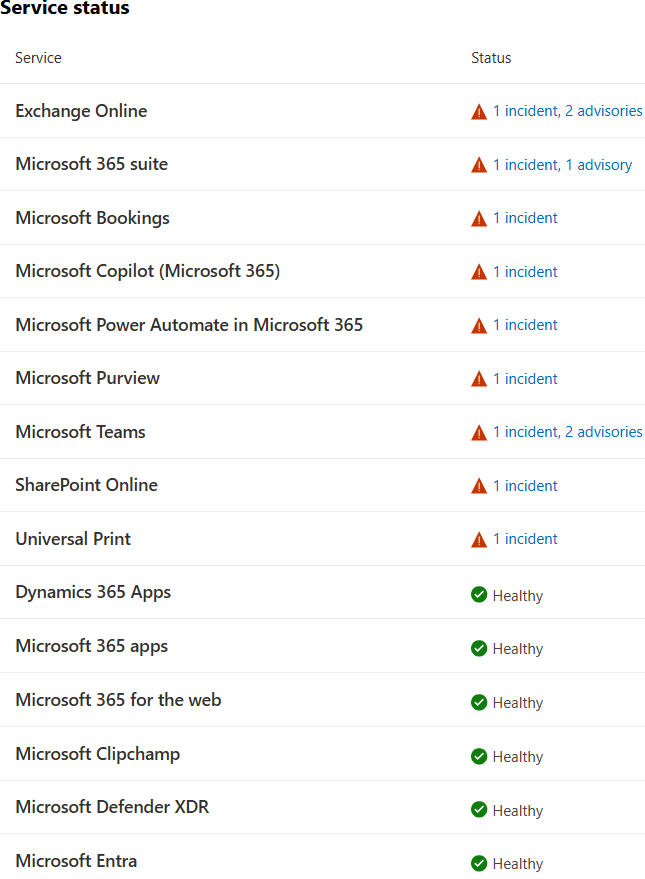
Wow, a rough day when I captured that screen. (MO941162)
Parse Services
Once again, I parse the services as a JSON object, this is the full schema
{
    "type": "object",
    "properties": {
        "@@odata.context": {
            "type": "string"
        },
        "value": {
            "type": "array",
            "items": {
                "type": "object",
                "properties": {
                    "service": {
                        "type": "string"
                    },
                    "status": {
                        "type": "string"
                    },
                    "id": {
                        "type": "string"
                    }
                },
                "required": [
                    "service",
                    "status",
                    "id"
                ]
            }
        }
    }
}
Filter to degraded services only (Filter array action)

We only want to focus on the services that have any issues.
A couple of Variable initializations
We will also initialize a variable with these filtered Service Names and other

and we will prepare two more variables:
- Name: updates, Type: String
- Name: TeamsMessageUD, Type: String
Where are we so far?
It can be easy to feel lost will all these actions, so here is where we are so far:
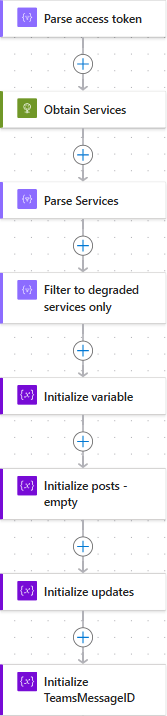
Spoiler: Next part
In the next blog post, we will query the Service Health API to get the current issues for the degraded services.
We will get to the final picture soon, don’t worry ☺️
 Andrés Gorzelany
Leave a comment