Microsoft 365 Apps installation updates regularly, the frequency for feature updates depends on the update channel selected in the company but non-security updates like bug fixes and security updates are received monthly, more information on how this works here.
One of the things that can happen is identifying a system not updating or lagging to update, let’s say a security update has been released but you observe some machines are not updating, if you are in this situation, you can try this that has helped me in one of my customers.
Note: this has been tested for Cloud update method (when updates are received from the Office CDN) and assumes that the scheduled tasks for Automatic updates are in healthy state.
Microsoft 365 Deployment Logs Collector
This is a great tool developed by Microsoft to gather important logs related to Microsoft 365 Automatic Updates, you can get it from here as we will run it on the affected system.
Once downloaded, we will execute OfficeDeploymentLogCollector.exe and it will open a command prompt informing us where it created the zip file containing the logs. Extract the zip file in a working or temp folder.
updateStatus
We will now use Notepad++ to find a specific string in multiple log files, the search string is updateStatus and the folder is ULS_WindowsTemp inside the generated log file:
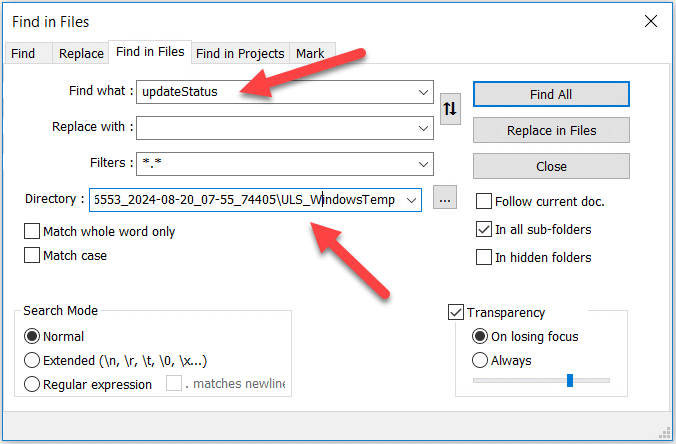
If there is update activity in the logs, we will see matching results like these
08/19/2024 07:07:28.910 OFFICECL (0x12d0) 0x27c Click-To-Run crnbm Medium C2R::Worker::TaskExecutionThreadProc {"MachineId": "d805166e-1277-40cc-833a-43bd73842f6f", "SessionID": "d51b429b-2319-4dd8-9a4c-0111332eb948", "GeoID": 166, "Ver": "16.0.17328.20452", "C2RClientVer": "16.0.17328.20550", "ContextData": "{\"sourceBuild\":\"16.0.17328.20452\",\"targetBuild\":\"16.0.17328.20550\",\"channel\":\"FRDC\",\"updateStatus\":\"Downloaded\"}"}
08/19/2024 21:53:57.733 OFFICECL (0x1958) 0x3970 Click-To-Run crnbm Medium C2R::Worker::TaskExecutionThreadProc {"MachineId": "d805166e-1277-40cc-833a-43bd73842f6f", "SessionID": "d51b429b-2319-4dd8-9a4c-0111332eb948", "GeoID": 166, "Ver": "16.0.17328.20452", "C2RClientVer": "16.0.17328.20550", "ContextData": "{\"sourceBuild\":\"16.0.17328.20452\",\"targetBuild\":\"16.0.17328.20550\",\"channel\":\"FRDC\",\"updateStatus\":\"UPDATEAPPLY failed\"}"}
08/19/2024 23:02:43.474 OFFICECL (0x3bb0) 0x56f8 Click-To-Run crnbm Medium C2R::Worker::TaskExecutionThreadProc {"MachineId": "d805166e-1277-40cc-833a-43bd73842f6f", "SessionID": "d51b429b-2319-4dd8-9a4c-0111332eb948", "GeoID": 166, "Ver": "16.0.17328.20452", "C2RClientVer": "16.0.17328.20550", "ContextData": "{\"sourceBuild\":\"16.0.17328.20452\",\"targetBuild\":\"16.0.17328.20550\",\"channel\":\"FRDC\",\"updateStatus\":\"Succeeded\"}"}
Analyzing the results
Every line has useful metadata like date and source and target versions and next to updateStatus you can check the update result:
- Downloaded: It means the update has been downloaded and is now cached and waiting for an opportunity to be applied.
- UPDATEApply failed: It means that the update was tried to be applied but failed for some reason (we can find this record multiple times too), to look for the reason, usually it is there in the previous line to this, something like “Updates are blocked due to running apps: Microsoft Excel,Microsoft Outlook,Microsoft PowerPoint” but other reasons also apply, this is the information we need to look for in case we are troubleshooting M365 Apps failing to update to a new version/build.
- Succeeded: The update was finally applied.
Other interesting bits
I believe these are self-explanatory:
TaskUpdateDetection::Execute: Already up to date. Oldest Installed version 16.0.17328.20452, Newest installed version 16.0.17328.20452, Available version 16.0.17328.20452
TaskUpdateDetection::Execute: Client update available for download! Installed version 16.0.17328.20452, Available version 16.0.17328.20550
Final thoughts
Although the page where you can download the Deployment logs collector says, “Run this tool when asked to by Microsoft Support.” we can use it to gather vital information and resolve issues preventing Microsoft 365 apps to update.
 Andrés Gorzelany
Leave a comment