Introduction
Cloud policies are the alternative provided by Microsoft to the classic Group Policies that have been around since Windows 2000. At the moment, they can be used to configure different policy settings for Microsoft 365 apps at user level, they don’t require an Active Directory infrastructure and use Entra ID instead.
When an endpoint downloads these Cloud policies from the service, they get saved in the registry in Windows, under HKEY_CURRENT_USER\Software\Policies\Microsoft\Cloud\Office\16.0, hence, the intention was to build a report tool like we have for GPOs, yes, I am thinking on gpresult.
Registry key information
Under the mentioned Registry Key path, we can find the policy settings, however, I have experienced some situations where the Cloud path is just not there, if that happens, check the sign-in status of any of the Microsoft 365 Apps like Word or Excel.
As I log in to multiple tenants, at the same level of the Cloud Registry Key Path, I have different GUIDs representing every Entra ID user being used for Microsoft 365 Apps:
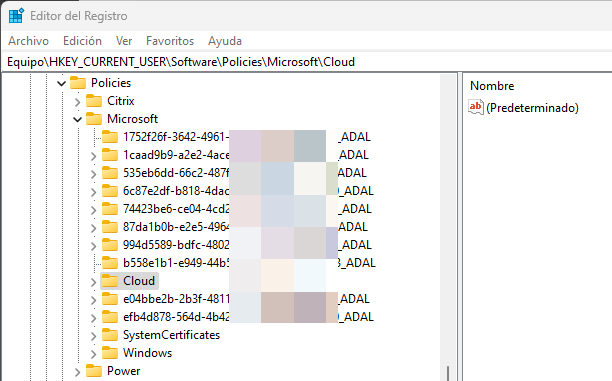
If you are curious like me, and expand any of those, you will notice the same path (Cloud\Office\16.0) and the policies also being created there, it seems that these keys are used as a cache and load into the main Cloud key when necessary as for example if I switch, Word from one user to another, the policy settings of the current user will be stored too in the documented registry key path.
There is also another documented registry path, located at HKEY_CURRENT_USER\Software\Microsoft\Office\16.0\Common\CloudPolicy, there, the policy service check-in information is stored, on my case, I also had different folders representing the multiple users I work with:
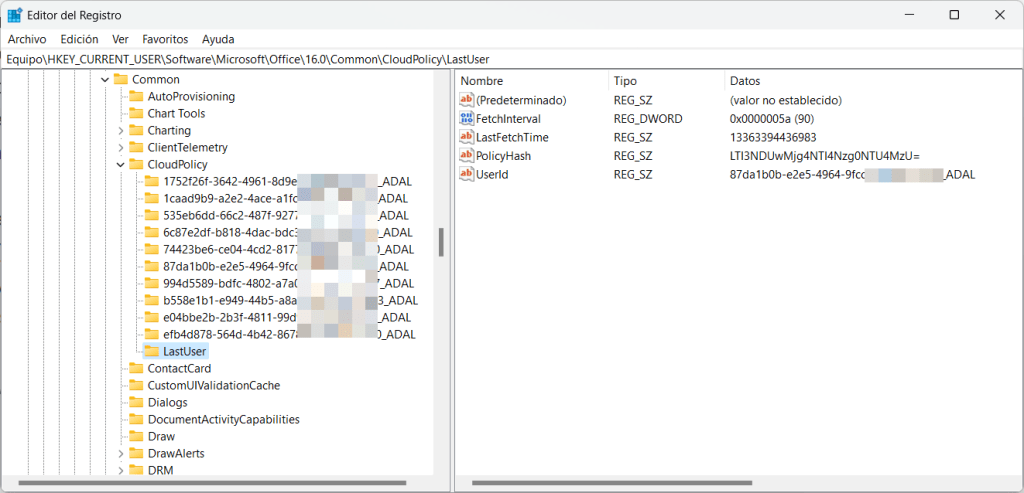
There are some interesting registry keys there to troubleshoot the retrieval of Cloud Policies.
Generating the report
There is no ADMX file that we can use to understand registry keys and registry values, Cloud Policies use the same relative path for policies that are available as GPO however there are new services that use new registry keys, Loop being one example.
Playing around with the browser Developer Tools in the config.office.com admin site I could get a JSON file (later converted to a CSV file) with information of the policy settings in the following URL
clients.config.office.net/settings/v1.0/SettingsCatalog/Settings
That’s what I am using to match the registry key to the policy setting, unfortunately, not all settings include the registry key information, however this file seems to be updated from time to time.
UPDATE August 2025: I’ve seen now that the URL has been changed to
config.office.com/settings/v1.0/SettingsCatalog/Settings
The script
The script is in its initial v0.1 version at the time I publish this article, and it needs improvement, some basic error handling and add the ability to create an HTML report are in the To Do list, for now, it shows the policy settings in a PowerShell Grid View:
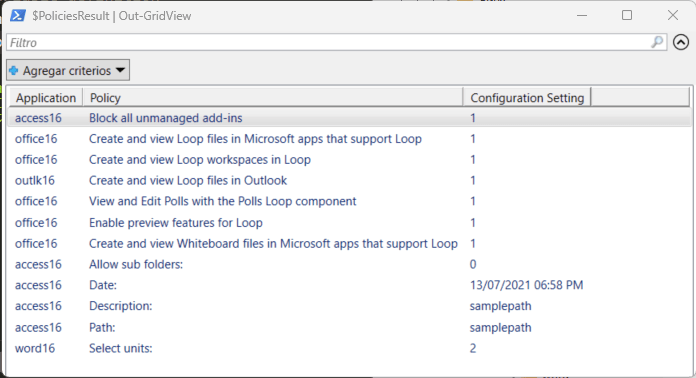
As you can see, some policy settings need better descriptions.
The script requires the mentioned CSV file to work, you can find this file and the PowerShell script in the GitHub repository, at the moment, the script requires no input, and you can run it with .\Get-CPResult.ps1 on a PowerShell session.
I invite everyone interested in this script to test it and report any bugs into the GH repo, also if you have PowerShell skills, to contribute to it.
 Andrés Gorzelany
Leave a comment