How to obtain
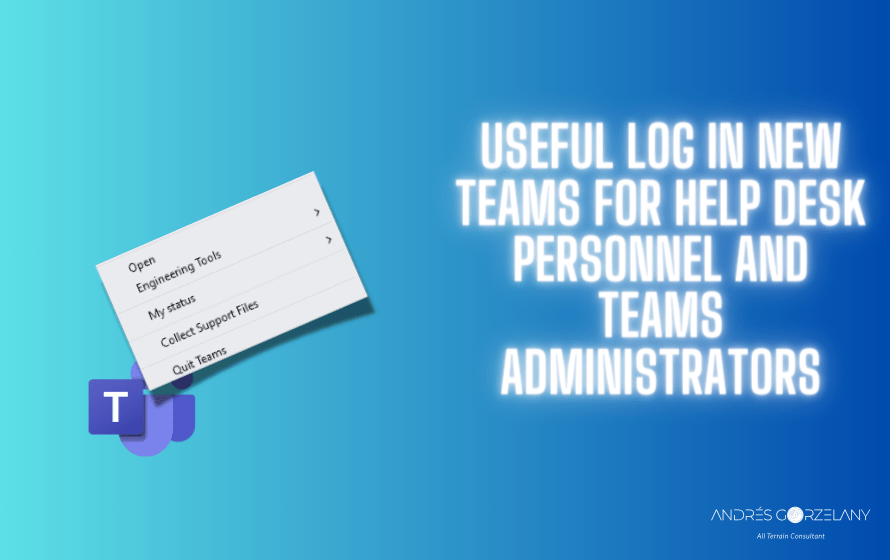
Right-click the Teams icon and select Collect Support Files, a zip file and a folder will be generated.
The zip file name format will be something like PROD-WebLogs-DATETIME.zip, inside this file, there are plenty of useful log files that can assist help desk personnel and Teams administrators troubleshoot Teams client issues (if more than one account is being used in the same Teams client, there will be different User (<guid>) folders, you can recognize the primary one that is currently logged on because it has Primary added to the filename), the guid is the guid of the user in the tenant, let’s review these files and its contents.
Note: I am basing this analysis in New Teams only, as classic Teams is already phasing out, we could find pretty much the same information in the MSTeams Diagnostics Log DATETIME.txt file in Classic Teams.
sync-policies-logs.txt
This is, from my point of view, the most interesting and useful; it is a JSON-formatted dump of the policies being applied to the user logged into the Teams client, for example, we can find the messagingPolicy key with the applied value for a specific property/setting in the received Teams Messaging Policy:
    "messagingPolicy": {
      "allowUserEditMessage": true,
      "allowUserDeleteChat": true,
      "allowUserDeleteMessage": true,
      "allowUserChat": true,
      "allowGiphy": true,
      "giphyRatingType": "Moderate",
      "allowGiphyDisplay": true,
      "allowPasteInternetImage": true,
      "allowMemes": true,
      "allowStickers": true,
      "allowUserTranslation": true,
      "allowUrlPreviews": true,
      "readReceiptsEnabledType": "UserPreference",
      "allowImmersiveReader": true,
      "allowPriorityMessages": true,
      "audioMessageEnabledType": "ChatsAndChannels",
      "channelsInChatListEnabledType": "DisabledUserOverride",
      "allowRemoveUser": true,
      "allowSmartCompose": true,
      "allowSmartReply": true,
      "chatPermissionRole": "Restricted",
      "allowFluidCollaborate": true,
      "allowVideoMessages": true,
      "allowEndUserReportingForCC": true,
      "allowCommunicationComplianceEndUserReporting": true,
      "allowChatWithGroup": true,
      "allowSecurityEndUserReporting": true,
      "allowGroupChatJoinLinks": true,
      "createCustomEmojis": true,
      "deleteCustomEmojis": true,
      "allowCustomGroupChatAvatars": true
    }
Some policies, like the Teams Meeting policy, also include the name of the received policy, in this case, the Global one:
"policyDocument": "TeamsMeetingPolicy=Host:Global",I don’t know why some policies do not include this useful information, let’s hope it is fixed in the future.
We can also find Dial Plan information under dialPlanPolicy, that includes normalization rules, E-911 and enterprise voice related stuff, very useful when troubleshooting calls.
Exchange web services information is also there, and it is particularly useful, for example this one corresponds to a user that has its mailbox in Exchange Server:
    "userPropertiesSettings": {
      "ewsUrl": "https://mail.contoso.com/EWS/Exchange.asmx",
      "isMailboxDiscoverable": true,
      "autodiscoverSettings": {
        "ews": {
          "url": "https://mail.contoso.com/EWS/Exchange.asmx",
          "mailboxStatus": "Discoverable"
        },
        "rest": {
          "mailboxStatus": "Unknown",
          "mailboxDiscoverabilityError": {
            "errorCode": "TaskTimedOut",
            "errorMessage": "Unable to complete the MailboxDiscoverability task",
            "exceptionMessage": "WaitingForActivation",
            "protocolType": "REST"
          }
        }
      },
      "exchangeRecipientType": "MailUser"
    }
versus another one with the mailbox in Exchange Online
    "userPropertiesSettings": {
      "isOnCloud": true,
      "ewsUrl": "https://outlook.office365.com/EWS/Exchange.asmx",
      "isMailboxDiscoverable": true,
      "autodiscoverSettings": {
        "ews": {
          "url": "https://outlook.office365.com/EWS/Exchange.asmx",
          "mailboxStatus": "Discoverable"
        },
        "rest": {
          "url": "https://outlook.office.com/api",
          "mailboxStatus": "Discoverable"
        }
      },
      "exchangeRecipientType": "UserMailbox"
    }
The complete list of policies included in this file are:
branchSurvivabilityPolicy
broadcastMeetingPolicy
callingPolicy
callParkPolicy
clientSettings
educationAssignmentsAppPolicy
educationSettings
externalAccessPolicy
feedbackPolicy
filesPolicy
meetingPolicy
messagingPolicy
onlineDialinConferencingPolicy
policySettings
smbTenantSettings
syntheticAutomatedCallPolicy
targetingPolicy
teamsAndChannelsPolicy
teamsAppPermissionPolicy
teamsAppSetupPolicy
teamsEmergencyCallingPolicy
teamsEmergencyCallRoutingPolicy
teamsEnhancedEncryptionPolicy
teamsEventsPolicy
teamsLinkPolicy
teamsMediaLoggingPolicy
teamsMeetingBrandingPolicy
teamsMessagingConfiguration
teamsUserPhoneNumbers
teamsVirtualAppointmentsPolicy
teamsVoiceApplicationsPolicy
tenantVoiceSettings
updateManagementPolicy
userPropertiesSettings
userResourcesSettings
vdiPolicy
voiceAdminSettings
voicemailPolicy
Conclusion
So, if you work supporting Teams client and do not have access to the Teams Admin Center, but you are troubleshooting an issue related to some functionality enabled or disabled in the policies, you can use this file to check them, and that can speed up things for you.
If you are a Teams Administrator and also have to do this kind of troubleshooting, you get the two sides of the story, the configured policies in the cloud and the policies received by the client, and you can understand if the replication has completed.
In the same folder you will find other interesting files that dump different configurations and client state, from my point of view those could be more interesting for Microsoft support services but can also be queried in specific troubleshooting scenarios.
Bonus track
If you have PowerShell skills, you can import this file as a JSON-formatted file and query the different properties, I’ll provide a PowerShell script to do that for the second part of this blog article.
 Andrés Gorzelany
Leave a comment