
Introduction
In our fast-paced digital world, the ability to adapt and stay informed is paramount, especially when it comes to services like Microsoft 365. Allow me to illustrate the stark contrast between those who actively keep track of updates and news, regarding Microsoft 365 and those who do not.
Picture two individuals in a professional setting, both administering Microsoft 365. The first individual diligently stays updated with the latest news and changes. They are aware of new features, changes to current functionalities, and efficiency enhancements rolled out by Microsoft. As a result, they seamlessly integrate these updates into their tenant’s workflow, maximizing productivity and staying ahead of the curve.
On the other hand, the second individual neglects to stay informed. They remain oblivious to the latest developments in Microsoft 365. Consequently, they miss out on valuable features that could streamline their user’s tasks, overlook crucial security updates, and ultimately lag behind in efficiency and effectiveness.
Flood of information is also harming our ability to distinguish what is really useful and important to what it is not.
In this post, I am sharing what I do to stay informed of changes in Microsoft 365 that affect my tenant and my customer’s tenants before is too late or the person affected by the change asks us and we are not aware and don’t know what to say, or worst, a change impacts many users in our tenant and we were not prepared, after all, we don’t want to be in that position, right?
The Journey of a change
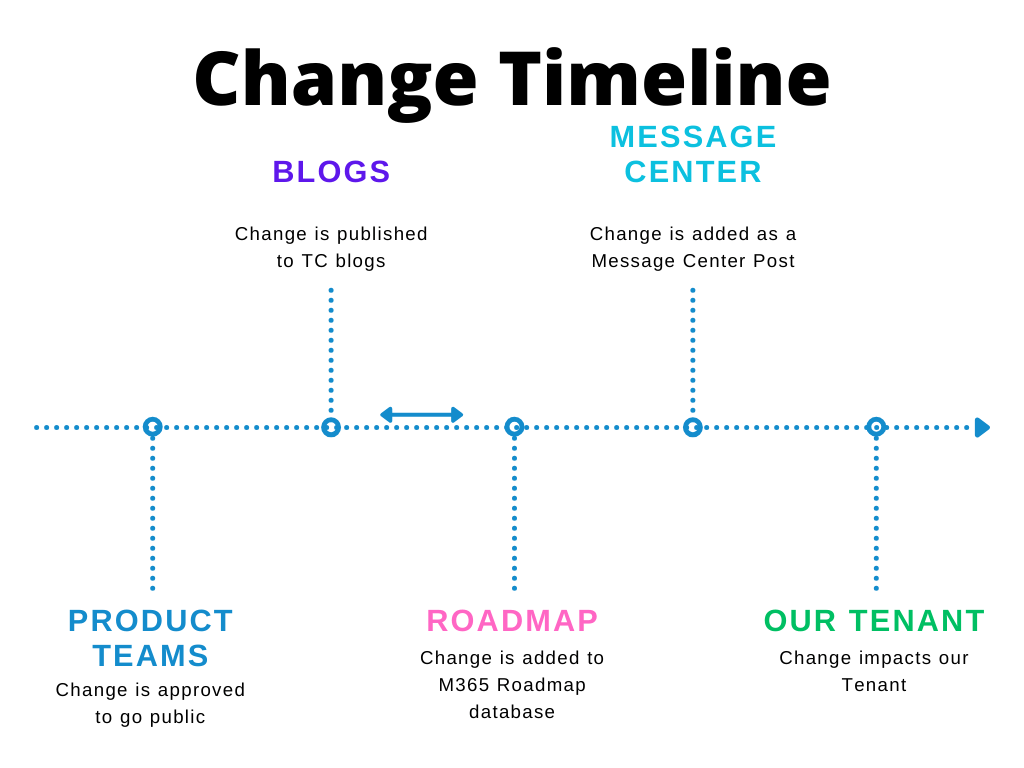
Somewhere in the timeline, a change is approved to go public internally at Microsoft, I don’t have the details around that, but for sure it includes the product team owning the product pushing the change, not all changes are published to Tech Community Blog, but many are, and usually, we get to know the change when a blog article is published to the Tech Community site, close to it, the change is added to the Roadmap database (I’ve seen many cases where the change is first added to the Roadmap, so please don’t take this diagram as the definitive and fixed timeline), and then, the change is added and formatted as a Message Center post, until it impacts our tenant.
Official Blogs
I have a favorites folder in my Edge profile with the following official Tech Community Blogs, not all blogs announce news, other share interesting and useful How-Tos, you can access the full list of official blogs by browsing to Tech Community Blogs section.
- Microsoft Teams Blog
- Microsoft Teams Support Blog
- Microsoft Teams Public Preview & Targeted Release Blog
- Exchange Team Blog
- Microsoft SharePoint Blog
- Microsoft 365 Blog
- Microsoft Entra Blog
- Microsoft Outlook Blog
- Copilot for Microsoft 365 Blog
- Microsoft Defender for Office 365 Blog
- Security, Compliance, and Identity Blog
- Daylight Saving Time & Time Zone Blog
- Windows IT Pro Blog
- Microsoft Learn Blog
Frequency to check: Daily
The Microsoft 365 Roadmap
The Microsoft 365 Roadmap is a very important tool to understand what and when changes are coming to Microsoft 365, it’s very hard to find a change that wasn’t added to the roadmap. The UI of the roadmap site it’s not perfect, it might be somewhat hard to follow what was added to the database, that’s why I subscribed to the RSS that the site offers using Feedly so I recommend doing the same to follow latest additions.
Anatomy of a Microsoft 365 Roadmap Item
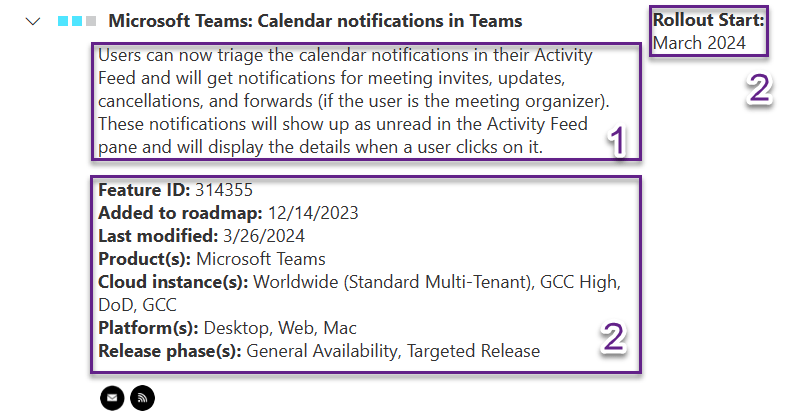
- 1 – Roadmap item description
- 2 – Roadmap item metadata
- Plus, there is a share mailto link and an RSS link of the roadmap item.
Frequency to check: Daily/Bi-Weekly
The Microsoft 365 Message Center
The Microsoft 365 Message Center is a great source of information of the change that is coming and if it will affect our Microsoft 365 tenant (including our users, our administrators and our budget), we can access it, under the Health menu in the Microsoft 365 Admin Center, or you can use this URL https://admin.microsoft.com/#/MessageCenter directly.
The Message Center User Interface allows you to filter, bookmark, search and also receive email notifications with the message center posts.
Anatomy of a Message Center Post
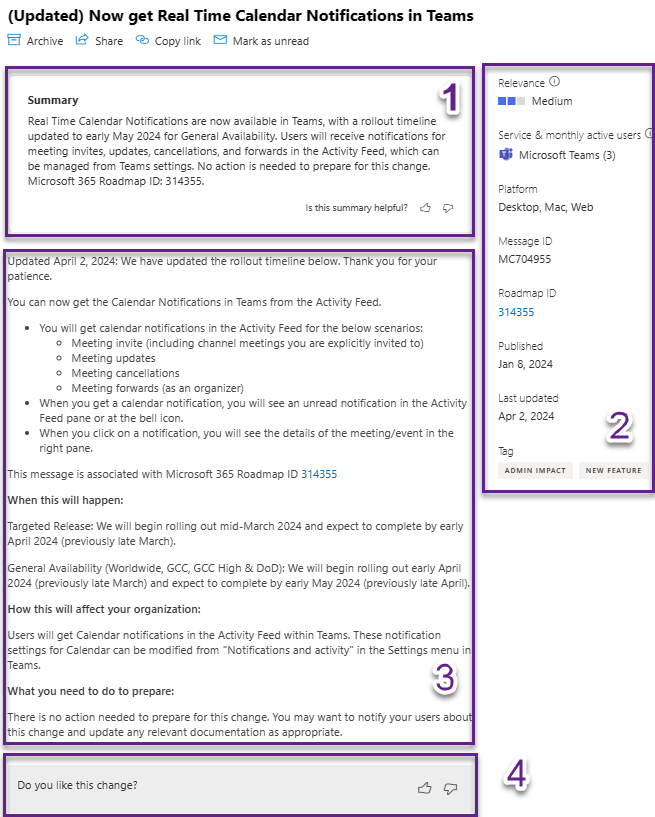
References:
- 1 – Summary of the change – Useful if we want to take a quick look
- 2 – Metadata of the change
- 3 – Long description of the change including when, how it will impact and what you need to prepare
- 4 – Feedback section where we can send feedback about the change or how it was published in the Message Center
Frequency to check: Weekly
Follow key people on Social Media
If we want to go one step further, we can include to our toolbox of updates following both Microsoft and other MVPs like
- Tony Redmond
- Merill Fernando
- Scott Schnoll
- Tom Arbuthnot
- Jeff Teper
- Darrel as a Service
- 365 Message Center Show
- Message Center para Humanos (in Spanish)
- Ali Tajran
Possible strategies
- Set up a Weekly Microsoft Teams recurring meeting with the IT team involved in the administration of the Microsoft 365 tenant.
- At the meeting, open Message Center, share the screen and review all new Microsoft 365 Message Center posts in the last 7 days.
- Discuss and analyze each change with the team.
- Assign an owner for each change, if the change affects your users/your tenant administration (You can use Collaborative Meeting Notes and take advantage of the Follow-up Tasks section).
- Mention any news about upcoming changes that is not in the Message Center important enough to be discussed with the team.
- Repeat the process the next occurrence of the meeting also reviewing the progress of each task (change) assigned.
 Andrés Gorzelany
Leave a comment